Create a free IATO account
You get 500 pages free, no credit card required. You will use this account to sign in when your assistant connects.
Connect your assistant
Every assistant asks for the same thing: the IATO server address.
https://iato.ai/mcp
Claude
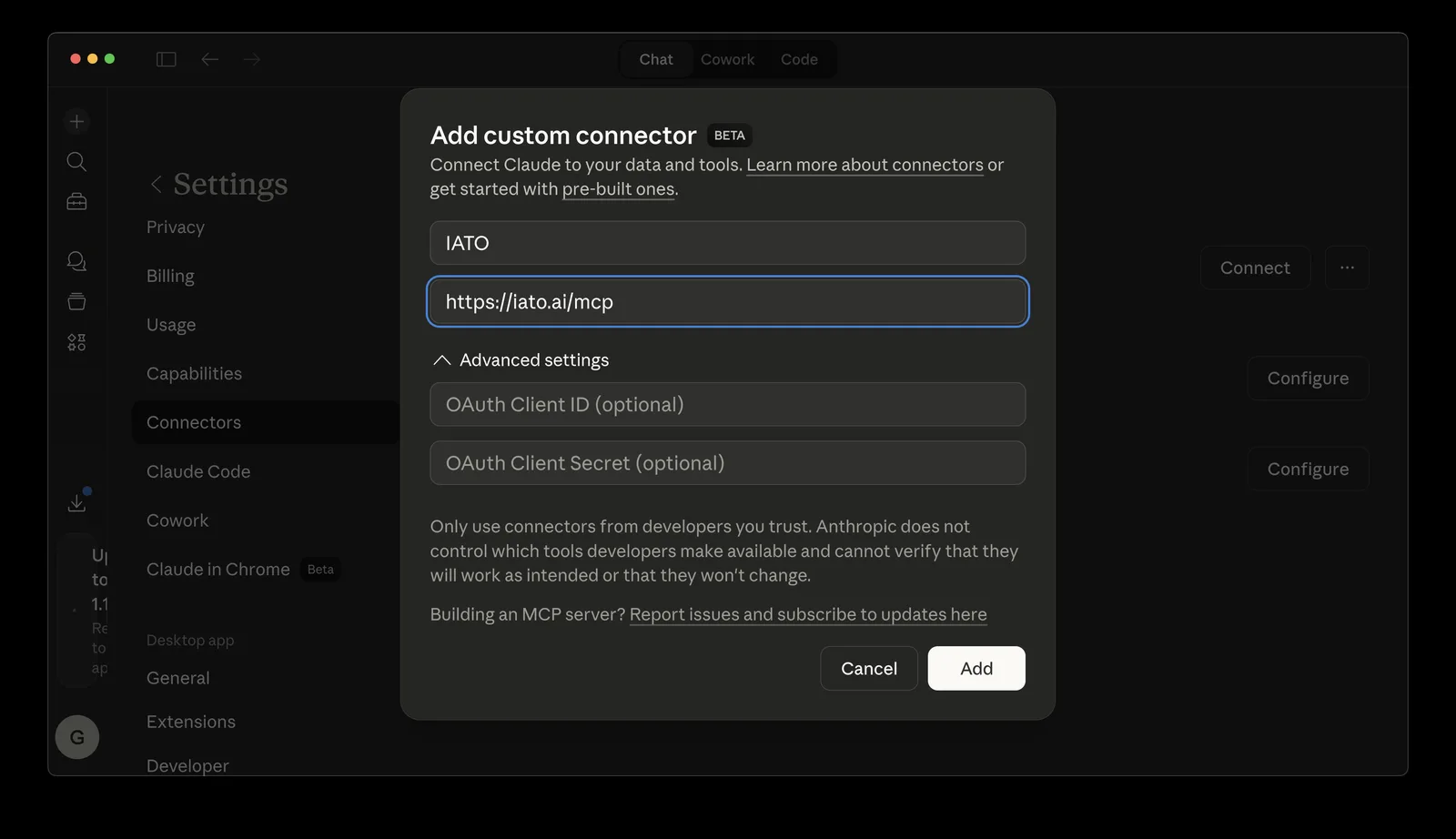
- In Claude (on the web or in the desktop app), open Customize and go to Connectors. In some versions this is under Settings, then Connectors.
- Click Add, then Add custom connector. Name it
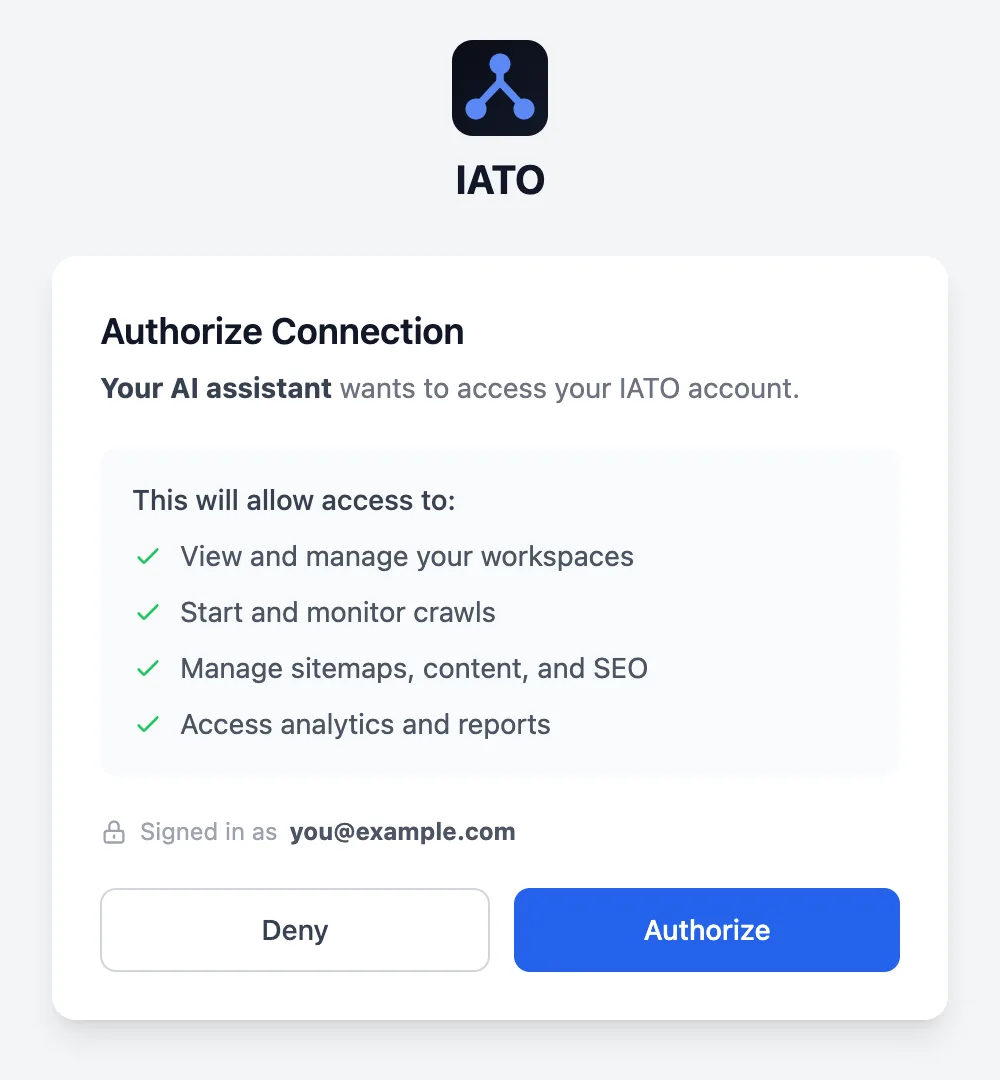
IATOand paste the server URL. Leave the OAuth Client ID and Secret fields empty, then click Add. - A sign-in window opens. Log in to IATO and click Authorize.
- In a chat, click +, open Connectors, and switch IATO on.
Plan note: Claude's free plan includes one custom connector. Pro, Max, Team, and Enterprise plans can add more.
ChatGPT
- Go to chatgpt.com/plugins, select +, then Add custom MCP server. If you don't see that option, turn on Developer mode in ChatGPT's settings first.
- Name it
IATO, choose Public endpoint, and paste the server URL. Pick OAuth for authentication, then confirm and create it. - A sign-in window opens. Log in to IATO and click Authorize.
- Start a new chat, type @, and choose IATO.
Plan note: Adding a custom MCP server needs a paid ChatGPT plan. On Business and Enterprise workspaces, an admin may need to allow it first.
Other MCP-compatible assistants
IATO works with any assistant or app that can connect to a remote MCP server.
- In your assistant's settings, find the option to add an MCP server, connector, or integration.
- Paste the server URL. If it asks how to sign in, choose OAuth.
- A sign-in window opens. Log in to IATO and click Authorize.
- No sign-in option? Create an API key in IATO under Developers, then API Keys, and add it as a request header:
Authorization: Bearer iato_your_key
Ask your first question
Paste one of these into a new chat. Swap "our site" for your own address, like example.com.
Crawl our site and tell me how it's structured.
Find our orphan pages, broken links, and SEO issues, and rank them by priority.
Build a visual sitemap of our site I can share with the team.
Tip: a first crawl can take a few minutes on larger sites. Your assistant can check on its progress for you.