Most accessibility work stalls between the report and the repair. A scanner hands you a few thousand findings, and someone still has to open each page in WordPress and fix them one at a time.
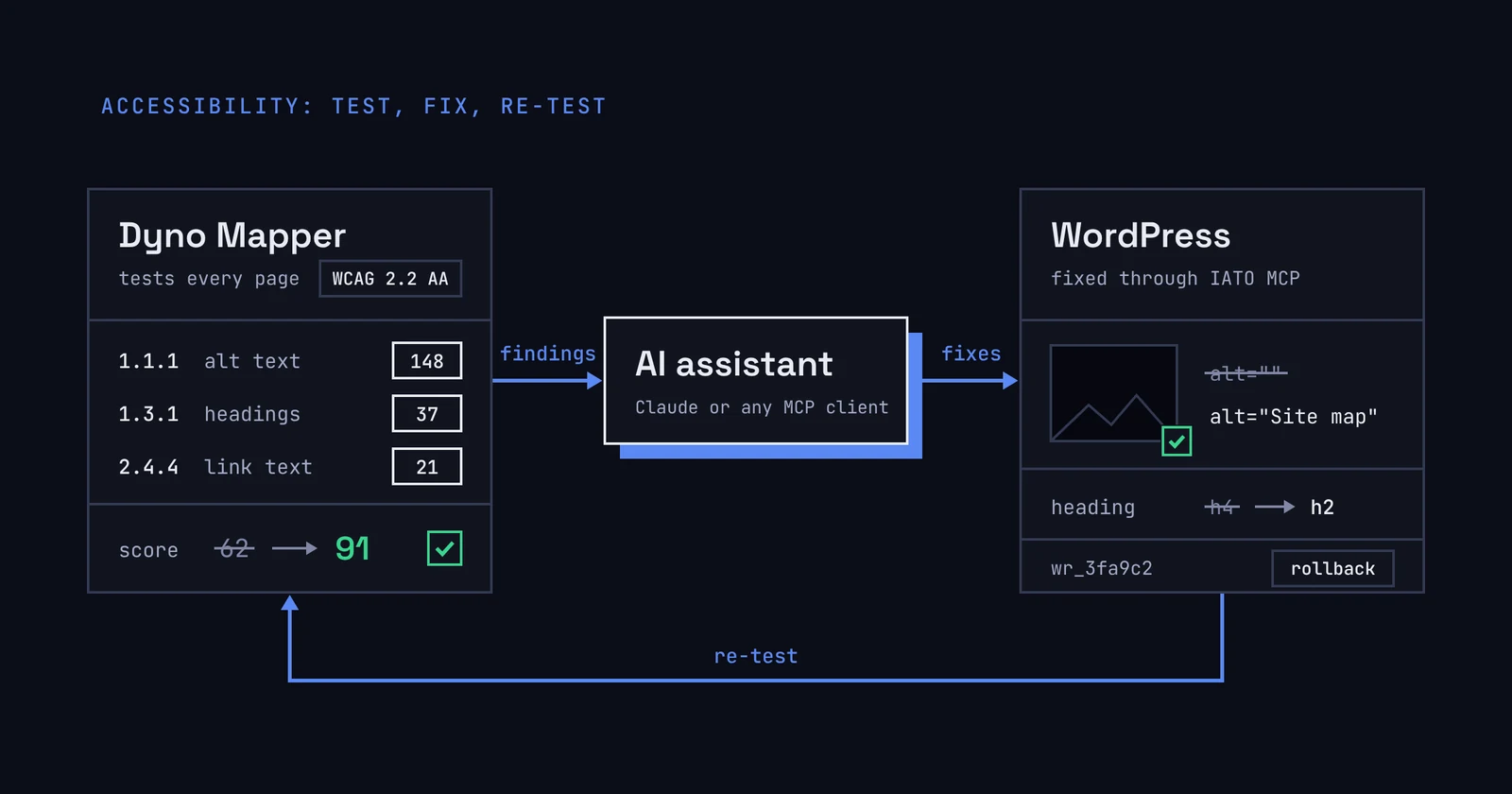
Two MCP servers close that gap. Dyno Mapper's MCP server tests every page of a site against WCAG. The IATO WordPress MCP writes the fixes into WordPress. Connect both to Claude, or to any assistant that supports MCP, and one conversation can run the test, sort the findings, make the repairs it is able to make, and test again.
The baseline is poor, which is why this is worth an afternoon. In WebAIM's 2026 study of the top one million home pages, 95.9% had detectable WCAG 2 failures, with 56.1 errors on the average page. Six error types make up 96% of those errors, and the two most common, low contrast text and missing alt text, are both fixes an assistant can make through the WordPress MCP.
Two servers, two jobs
One server tests and never touches your site. The other edits your site and keeps a receipt for every change.
| Dyno Mapper MCP | IATO WordPress MCP | |
|---|---|---|
| Job | Crawls the site and tests each page | Reads and edits posts, media, menus, SEO fields, Elementor widgets and the site's CSS |
| Standards | WCAG 1.0, 2.0, 2.1 and 2.2 at A, AA and AAA, plus Section 508, BITV 1.0 and the Stanca Act | Not a tester. It applies the fixes |
| Where it runs | Hosted at https://mcp.dynomapper.com/mcp, OAuth sign-in, nothing to install |
A free, open source plugin on your own self-hosted WordPress site |
| Changes your site | No. Reports are stored in your Dyno Mapper account | Yes. Every write returns a change receipt you can roll back |
| Size | 108 tools in 15 modules. 14 are for accessibility: 11 for web pages, 3 for PDFs | 76 tools in version 1.21.1: 64 for WordPress, which work as soon as the plugin is active, and 12 that read IATO crawl data |
The assistant sits between them. It reads a finding from one server, works out which WordPress page it belongs to, and makes the change through the other.
What you need
- A Dyno Mapper account on a plan that includes Accessibility. There is a 14-day free trial.
- A self-hosted WordPress site running WordPress 6.2 or later and PHP 8.0 or later, where you can install a plugin.
- The IATO MCP plugin, in the WordPress.org plugin directory and at iato.ai/wordpress-mcp. It is free and open source under GPL v2, and the 64 WordPress tools need no IATO account.
- An assistant that supports remote MCP servers. Dyno Mapper documents Claude, Cursor and VS Code. The WordPress MCP page lists Claude Desktop, Gemini and ChatGPT.
Connecting takes two steps:
- Dyno Mapper. In Claude, open Settings, then Connectors, and add a custom connector with the URL
https://mcp.dynomapper.com/mcp. Sign in when the OAuth window opens. In Claude Code, runclaude mcp add --transport http dynomapper https://mcp.dynomapper.com/mcpand authenticate with/mcp. - WordPress. In WP Admin, go to Plugins, then Add New, search for IATO MCP, then install and activate it. Copy your site's MCP endpoint URL from Settings, then IATO MCP, in WP Admin. Add it as a second connector and authorize it.
If you have a staging copy of the site, connect that first. Everything below works the same there, and you can rehearse the fixes before you make them on the live site.
Step 1: Test the whole site
Ask the assistant to crawl the site with Dyno Mapper and check every page against the standard you name. One prompt does it:
Create a Dyno Mapper project from example.com. When the crawl finishes, run an accessibility check against WCAG 2.2 AA and tell me when it is done.
The assistant calls create_project_from_url to crawl the site, watches the crawl with get_project_url_job_status, then calls run_accessibility_checker. The check runs in the background. get_accessibility_results shows the page count, the problem counts and the score as they fill in.
Three settings are worth saying out loud:
- The standard. The default is WCAG 2.2 AAA, the strictest level. Most teams aim for AA, so name it. If you are a US state or local government, the Justice Department's Title II rule uses WCAG 2.1 AA. In April 2026 the department moved the compliance dates to April 26, 2027 for populations of 50,000 or more and April 26, 2028 for smaller entities, and left the standard unchanged. Which standard binds you is a legal question, so ask counsel.
- The classes of problem. Dyno Mapper sorts findings into known problems (confirmed violations), likely problems and potential problems. A run records likely and potential problems unless you turn them off. Manual checks, the ones only a person can decide, are off unless you ask for them.
- Sign-in. For pages behind a login, the run can pause on a sign-in prompt, such as an MFA code. The assistant passes the prompt to you. Prompts expire after about an hour.
A crawl and a check on a large site take a while. You can close the conversation and ask for the results later.
Step 2: Read the results and pick what to fix first
Ask for a summary by WCAG guideline and by page, so you can see which problems repeat before anything is fixed. A raw list of findings is not a plan.
Summarize the run by WCAG guideline. Then list the 20 pages with the most known problems, and tell me which problems repeat on every page.
Four tools answer that:
get_accessibility_report_problemsgives one row per guideline, with the number of problems and the number of pages affected.get_accessibility_report_groupsbreaks each guideline into its success criteria, such as 1.1.1 Non-text Content.get_accessibility_report_itemslists the pages, and can sort them by known problems.get_accessibility_report_item_resultreturns everything found on one page, split into known, likely and potential.
Then sort the work in this order:
- Known problems before likely and potential ones. They are confirmed, so no time goes on false alarms.
- Repeats before one-offs. A problem on every page usually lives in the header, the footer or the theme. One fix clears it everywhere.
- Content, then styling. Alt text, headings, link text and titles are the quick wins. Contrast and focus styles come next, because one CSS change reaches every page.
Step 3: Fix the issues from the same conversation
The report names pages by URL, and the WordPress MCP turns each URL into something it can edit. It makes the same four moves every time:
resolve_urlfinds the WordPress post behind the URL.get_page_builderchecks how the page was built: Elementor, WPBakery, Divi, Gutenberg or the Classic editor. The right write tool depends on the answer.- The assistant makes the change as a dry run and shows you what would change.
- You approve, it writes, and the tool returns a change receipt.
These are the findings it can fix:
| Finding | WCAG criterion | Fix with the WordPress MCP |
|---|---|---|
| Images with no alt text | 1.1.1 Non-text Content | get_media with the missing-alt filter, then update_alt_text |
| Skipped or repeated heading levels | 1.3.1 Info and Relationships | set_heading_level on Elementor headings, update_post for block and classic content |
| Empty or vague link text in the page body | 2.4.4 Link Purpose | update_post or update_elementor_widget |
| Missing or duplicate page titles | 2.4.2 Page Titled | update_post for the title, update_seo_data for the SEO title |
| Unclear menu labels | 2.4.4 Link Purpose | update_menu_item_details |
| Low contrast text | 1.4.3 Contrast (Minimum) | update_custom_css for a site-wide rule, or set_widget_setting to change a color on one Elementor widget |
| No visible keyboard focus | 2.4.7 Focus Visible | update_custom_css |
| Form fields with no label, in an Elementor form | 3.3.2 Labels or Instructions | update_elementor_widget |
| Problems in a header or footer built with Elementor | Any of the above | list_elementor_templates to find the template, then the widget tools |
Alt text is the place to start, because it is the second most common failure on the web and the plugin has a filter for it:
For every image the report flags for missing alt text, write alt text that fits the image and the page it is on. Show me the list before you save anything, and flag any image you could not open.
Read the list before you approve it. The assistant can describe what is in a picture, but it does not know why you put it there. A decorative image should have empty alt text, and a chart needs its point, not its colors.
Contrast comes next, and it is where one fix goes furthest. Low contrast text is usually a handful of color pairs repeated across the site:
Look at the contrast failures in the report and group them by where they appear. Propose the smallest CSS change that brings each to 4.5:1. Show it as a dry run and wait for my approval.
update_custom_css writes to the theme's Additional CSS, which loads on every page, so one approved rule clears the finding everywhere those colors are used. It needs an administrator account. Its receipt stores the full previous CSS, so a single rollback puts the old styles back.
Every write is reversible. A change receipt carries a wr_ ID, the before and after values, and a timestamp. If a fix reads wrong, say "roll back that change" and the rollback tool restores the old value. It refuses if someone has edited the value since, so it cannot overwrite newer work by accident.
Step 4: Test again and track the score
Run the same check again and compare the score with the last run, so every fix is confirmed by the test.
Run the accessibility check again with the same standard and compare it with the last run.
run_accessibility_checker queues a new run. get_accessibility_score returns the score on a 0 to 100 scale along with the change since the previous run, and get_accessibility_history returns the finished runs in date order, which is what you need to chart progress for a client or a manager.
One caution before you re-test. The WordPress MCP purges the page caches it can reach after a write and tells you which ones it could not, such as a CDN. If a cache still holds the old page, the checker will test the old page. Purge it or wait before you run the check.
After the first pass, make this a routine. Run the check monthly and after any large content push, and ask the assistant to fix what is new.
What the assistant can fix, and what still needs a person
The assistant can fix most of what the test finds, as long as the problem lives in content, in an Elementor widget or template, or in CSS. What is left falls into two smaller groups.
| The assistant can fix, with your approval | Needs a developer or a site admin | Only a person can judge |
|---|---|---|
| Missing alt text | Markup produced by a theme's template files or by another plugin's code | Whether alt text says the right thing |
| Heading levels, link text, page titles and menu labels | The site language setting | Keyboard and screen reader use of the real page |
| Low contrast text and missing focus styles, through CSS | Third-party embeds, such as a booking widget or a map | Whether a new color still looks like your brand |
| Labels, buttons and links in Elementor widgets, headers and footers | PDFs, which are fixed in the source document | Captions, transcripts and the report's manual checks |
Contrast is the big one. Low contrast text is the most common failure WebAIM finds, on 83.9% of home pages, and the WordPress MCP can change it in one place for the whole site. Review the dry run the way you would review a designer's change, because it alters how the brand looks.
A clean run is a floor, not a finish line. Automated tests catch only the failures a script can detect, and WebAIM says plainly that a page with no detected errors is not necessarily accessible. Test the main journeys with a keyboard and a screen reader before you call a site conformant.
One difference from an overlay is worth knowing. These fixes are written into WordPress itself, so they are in the page every visitor and every assistive technology receives.
Prompts to copy
Swap in your own domain. Each of these works in one conversation once both servers are connected.
Full first pass
Create a Dyno Mapper project from example.com and run a WCAG 2.2 AA accessibility check. Summarize the problems by guideline, then fix every missing alt text in WordPress. Show me the changes as a dry run first.
Heading cleanup
Find the pages where the report flags heading structure. For each one, show me the current heading outline and the outline you propose. Change nothing until I approve.
Contrast
Look at the contrast failures in the report and group them by where they appear. Propose the smallest CSS change that brings each to 4.5:1. Show it as a dry run and wait for my approval.
One template at a time
List the problems that appear on more than half the pages. For each, tell me whether it comes from page content or from the theme, and write a ticket for the ones you cannot fix.
Re-test and report
Run the check again, compare the score with the last run, and write a short summary I can send to a client: what was fixed, what is left, and who needs to fix it.
Undo
Roll back the last alt text change you made on the pricing page.
To set this up, start with the Dyno Mapper MCP server documentation and the IATO WordPress MCP page. Both take a few minutes to connect.
Sources
- Dyno Mapper MCP server documentation: the endpoint, the tool list, the standards and the problem classes.
- IATO WordPress MCP: the tool list, the requirements, change receipts and rollback.
- The WebAIM Million, 2026: failure rates across the top one million home pages, measured in February 2026.
- Federal Register, April 20, 2026: the Justice Department's interim final rule on Title II compliance dates.